How to deal with LOD Characters in Golaem Crowd?

Ever wondered how many render cycles you lost to render "less-than-one-pixel-characters-in-the-far-far-background-of-your-shot" using a full resolution mesh? Too many for sure! Those little guys have wasted too much of your time and it's your turn to rule now: use level of details!

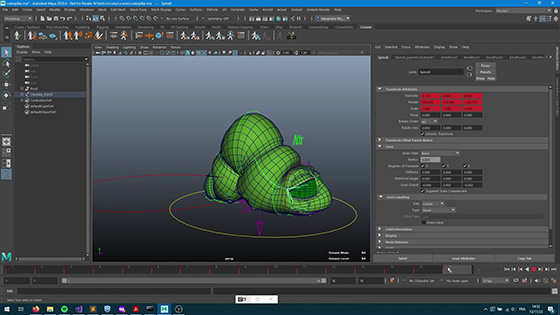
So, how can you deal with LOD characters in Golaem Crowd? First, you need different LOD of a same character (obvious, isn't it?): try to keep mesh names, shaders, uvs... identical amongst the different versions. Here is an example of 2 lods of the CrowdCharacter (provided for free with Golaem Crowd) generated in 5 min with the Smooth Mesh tool of Maya.

LODs

The two characters are then stored in two separate fbx files and referenced in the Crowd Asset Manager as two new Geometry Files:

AssetManager

 And now it's up to you to decide when / why / where you'd like to use either one or the other thanks to the Geometry behavior and a bunch of triggers. Here's an example based on camera distance.


Behavior Editor

1/ Configure an EntityType, open its Behavior Editor and create a new Container called LOD. We'll use it to manage the LOD affectattion.

Lod1

2/ Enter the container and create two Geometry behaviors . Configure one behavior to reference the low definition character and the other with the high definition one (in the Asset Manager, select the corresponding Geometry File and click on the "Assign" button. The Geometry behavior is designed to switch / play FBX files whenever you'd like during a simulation. It can also be used to replay secondary animations (baked cloth, facial, blenshapes, spiders...).

Lod2

3/ Now, let's use the Alternative operator to choose one way or the other depending on the distance. The Alternative operator acts as a "IF condition is true, THEN do this, ELSE do that". You can easily control the behavior of an Alternative operator by selecting it and looking at its Attribute Editor. Notice that the first arrow coming out of the Alternative operator corresponds to the ELSE case and all the next ones will be associated to a trigger (see the little dots included in the arrows).

Lod3

4/ In the image above, with the default configuration, we have : IF trueTrigger is true THEN use lowDefinition geometry ELSE use highDefinition geometry. Which means that all the characters will have the low definition geometry. Let's change this to make it relative to the distance of each character with the camera. Create a new Trigger node from the Crowd Shelf , rename it distanceToCamera and map a camera node to its Distance trigger: Following the same mechanism, you can add as many Geometry behavior as you want and deal with a lot of different levels of detail.

distanceTrigger

5/ Finally change the trigger used in the Alternative Operator (from the default trueTrigger to the new distanceToCamera trigger) and you're done! Now you can add your regular behaviors in parrallel with the LOD container and let Golaem Crowd load the correct geometry for you at render time!

6/ Don't forget to save this LOD Container as a template (right click on the Container and "Save as template...") to add it to your custom behaviors and use it in further shots / scenes.

SaveasTemplate


Switching LOD during the Simulation

As you may have noticed, the LOD Behavior explained above will make each character pick a Geometry File at the beginning of the simulation and will keep it, even if his distance to the camera changes. This is because the Alternative trigger will only be evaluated once. Even if this can be changed by creating a Behavior loop, it is clearly not a good idea... Changing a geometry of an object on-the-fly can really mess up the rendering engine : how to compute deformation motion blur between two topologies, how to deal with the visual popping... But it's up to you :)


Rendering

Here's how the render looks like with Arnold in Maya after exporting the simulation and adding a proxy to the scene:

Render

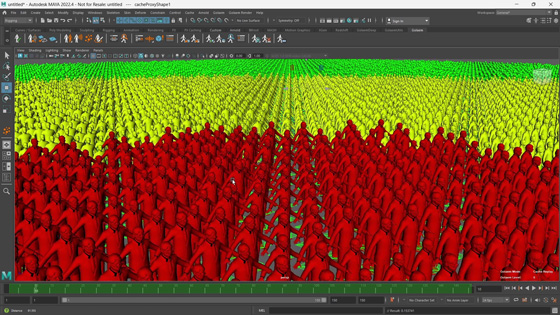
And to give you an idea of which geometry has been used where (red are low def characters and green are high def)

Render2

Not bad isn't it ? Thanks to LOD, the scene polygon count felt from 3millions to 1.6millions and render times reduced by more than 30% for this simple image!!

As always, any question or improvement suggestion are welcome.


Follow The Crowd - Golaem Talk at FMX 2013

We are back from FMX, it was awesome! Great people, interesting talks, and lots of parties.

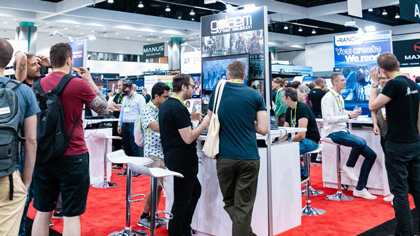
We had a booth on the marketplace and were giving a talk in the Virtual Human Forum. As usual, Peter Plantec, the Virtual Human Forum Chairman, invited very insightful speakers:

  • Stephen Regelous, Massive Software CEO
  • Ed Ulbrich, Digital Domain CEO
  • Steven Stahlberg, Senior Figure Artist at ZeniMax Online Studios
  • and Nicolas Chaverou, the Golaem Crowd Product Manager

The forum focused on taking an in-depth look at the various techniques used to simulate humans, more particularly crowds,  as well as exploring the different paths that can be taken to achieve realism and the advantages & drawbacks of each one.

Nicolas detailed the vital parts of a crowd simulation software, each time illustrating them with real-world production cases:

  • Visual diversity (props, shaders...)
  • Behaviors
  • Animation
  • Path-finding & Navigation
  • Physics

If you could not make it to FMX 2013 or want to share the slides with your team, we uploaded Nicolas' slides on Slideshare.

Here they are:


LookFX uses Golaem Crowd for Warm Bodies Boneys

Look Effects contributed to all VFX effects for the recently released zombie movie Warm Bodies. They had to create a post apocalyptical world filled with zombies and their arch enemies: the Boneys. Two species which like to gather as hords.


Source: ART of VFX

According to Dan Screcker, VFX Supervisor at Look Effects, in Digital Media World: "When handling the large groups, up to 50 in one frame, we usually used the Golaem crowd plug-in to import all the models for the backgrounds, with the hero Boneys in the foreground keyframed by hand. Inside Golaem, we could make a few variations like size and proportions and then after the models were in place, individual colour correction could be done to further randomise the look."

The crowd shots are scattered along the whole movie, but the final chasing shot was the one which most impressed our Product Manager when he saw the movie last week-end.

Have a look at this vfx breakdown from Look Effects. We hope to be able to show more soon.

See more pictures & learn more about the making of Warm Bodies in these interviews:


Golaem Crowd fills up Will I Am's concerts for Fullframe Filmes

Watch Will I am perform for huge CG crowds generated using Golaem Crowd.

The post-production on this commercial was done by Fullframe Filmes, a great work for one of their first crowd job.  Golaem Crowd terrific procedural rendering performances were in a handy for the mars shots  including tens of thousands of people.

Here is a making of done by Fullframe:


Golaem Crowd Siggraph 2012 Demo: Fortress Assault

If you could not make it to Siggraph this year, maybe you missed our new Golaem Crowd demo: Fortress Assault.

This demo includes 5 500 soldiers attacking & defending a huge fortress, and demonstrates the features of Golaem Crowd 2.0, released on the first day of the exhibition.

All modeling, rendering and compositing have been done by our in-house artist: Axel Domenger.

The success of this demo is really the result of our collaboration with great partners.

Pixar & Greenbutton

We partnered with Pixar and Greenbutton in order to render our scene with Renderman on Demand (using Microsoft Windows Azure) using the last beta version of Pixar's Renderman ProServer 17 (which improved tremendously our processing time!).

If you are wondering about the rendering stats, you can have a look at our presentation on Pixar's booth.

Intel Partnership

Golaem Crowd 2.0 optimization and multithreading made thanks to Intel tools really helped speeding up the production process.

A lot of details are given in this nice Intel Software Adrenaline article, included in the Siggraph Edition.

You can also take a look at the presentation we did on the Intel Theatre and get more details about the results.


Tutorial Crowd V2 #2: Playing a motion

This tutorial explains how to make your characters play a simple motion, add motion diversity in your scene, and mix multiple motions on different parts of the body.


Tutorial Crowd V2 #1: Creating your first EntityType

This tutorial explains how to create a character type and getting a mesh preview for your characters.

It will be used as a starting point for many of the following tutorials.


Tutorial Crowd V2 #0: Workflow Overview

This tutorial explains how to create a crowd scene using Golaem Crowd, from characters placement to rendering. Each step will be detailed in further tutorials.


Render Crowds with V-Ray for Maya

Please note that this post is now obsolete if you want to render in Maya. Starting from 2.1 version, Golaem Crowd includes a V-Ray proxy which will help you to easily render in Maya. You should have a look at the Golaem Crowd Maya Rendering FAQ instead.

As V-ray is becoming more and more popular amongst our customers and evaluators, we thought that the release of Golaem Crowd 1.5 would be the perfect occasion to make the V-Ray plugin work in one click in Maya.

Sounds nice!? Sure, it does! But before starting, why don’t you have a look at this wonderful post, written by yours truly, about our Crowd procedural rendering mechanism and how it fits in  Renderman-ended pipelines. That’s it? Ok, let’s go for the trick of the week!
 

Workflow

Here’s how our V-Ray rendering worked: export the .vrscene file of your scene, export the .vrscene files of your crowd, include the latter in the first, render with V-Ray stand alone and enjoy… But what if I change a light or the geometry of the layout?  Well, you need to re-export your scene, re-include the files and re-render… Boring, isn’t it?


And what about shortening the pipeline a bit? The principle remains the same: at one point, your crowd .vrscene files need to be included in your main scene. But this can be done in Maya, you can change your main scene for free and, last not least, it will work with the V-Ray for Maya renderer.


Step-by-Step Process

1) First, you need to install the Golaem Crowd Vray plugin: copy all the files of the plugin (located at GolaemInstall/plugins/vrayPlugin/) in the V-Ray for Maya plugin directory (usually MayaInstall/vray/vrayplugins/);

2) Open your main Maya scene (can be the same than your crowd simulation scene)


3) Export the crowd .vrscene files if not already done.


4) (optional) Once the simulation exported, it could be easier to generate a filelist.vrscene file which includes all the generated crowd .vrscene files. Here’s our bat script to generate such a file. Feel free to modify or adapt it anyway you’d like but remember that, at the end, THE .VRSCENE FILES MUST BE INCLUDED IN FRAME ASCENDING ORDER (if not V-Ray will mess with the characters bounding boxes and you’ll get some strange results).

Script for Windows (bat file) - and for Linux (.sh file):
 

5) Render with V-Ray. Nothing happens… Well, you thought that it’ll be that easy? C’mon!


6) To make your life easier, the guys from Chaos Group (god bless them), provide some accesses to the render scene, just before it is actually rendered. The one which interests us the most is the “Post Translate Python Script” in the V-Ray Render Settings => VRay Common tab => MEL / Python callbacks panel. Add the following lines into the field:

from vray.utils import *
addSceneContent('N:/export/filelist.vrscene')

Notice that this field is also an attribute of the vraySettings node of your scene, available this way in MEL:

setAttr -type "string" vraySettings.postTranslatePython "from vray.utils import *\naddSceneContent('N:/export/filelist.vrscene')";


7) Now render again. Better… but it seems that the plugin cannot find some of the shaders referenced in the Crowd Asset Manager tool (meshes without shaders appear in flat red).


8) Load your reference character in the current scene and render again.


9) Then, you can tweak your character shaders, play with the timeline, change your lights… You can even change the asset repartition or the procedural shader parameters with the Crowd Asset Manager Tool and see the result immediately. Go go go naked men (also works with naked women)!


As always, any question, improvement suggestion, bug report is welcome and will help me to access perfection and all-wisdom. For more information about the V-Ray's addSceneContent function and some other cool stuff to help you include & render .vrscene files in Maya, have a look here.


Tutorial #6: Population Tool on editable meshes

This tutorial details a new feature available on Golaem Crowd 1.4, released yesterday (see here).

It explains how to use the Golaem Crowd population tool in order to place your characters using an arbitrary polygon shape. Watch how the polygon tool is able to handle modification of the polygon on the fly!

If is a very convenient tool if you want to create text effects with crowds, like the one we did in our 120K characters video


Syndicate content